Impacted Members/Scientists: Request a membership waiver, seek meeting support, and other resources. Learn more. For the latest public policy updates, please visit this page.




246th meeting
Meeting Program

246

246th
meeting of the American Astronomical Society
Anchorage, Alaska
8
–
12 June 2025
To log in to the AAS 246 platform in an internet browser window
Access from your invitation email (easy)
Invitations to log in to AAS 246 are emailed to all registrants on Tuesday, 3 June. The email is from [email protected], subject line “Log in to AAS 246 Meeting”.
You may simply click the “Get Started Now” button in the email to access the meeting on the mobile app or click “Access Event on the Desktop” to join the meeting’s website from your PC.

Access following step by step instructions
If for some reason you can’t locate your invitation email you can follow the instructions below.
DESKTOP ACCESS
- Visit the platform website: https://events.rdmobile.com/Events/Enter/18987.
- Enter the email address you registered with (on your AAS account) and click log in.
- Go to your email inbox and search for the email from [email protected], subject line “Log in to AAS 246 Meeting,” and click on “Log In Now.”
Note that this link is specific to you and can’t be shared with others.
ACCESS THE MOBILE APP
- Download the “Engagefully” app from your mobile device's app store.
- Search for the American Astronomical Society.
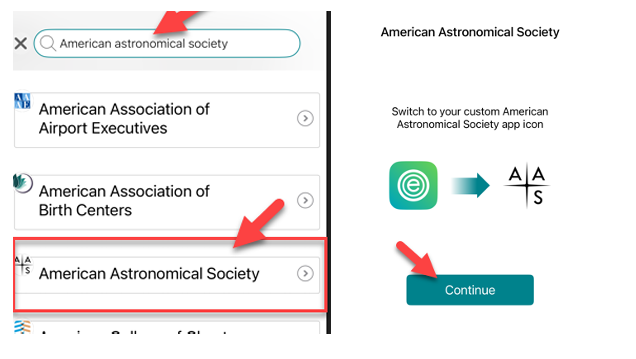
- Change the app icon to AAS logo and confirm OK.

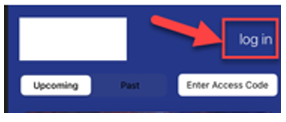
- Find AAS 246 event and click login. If you need an access code, we can provide it in person at the registration desk.
-
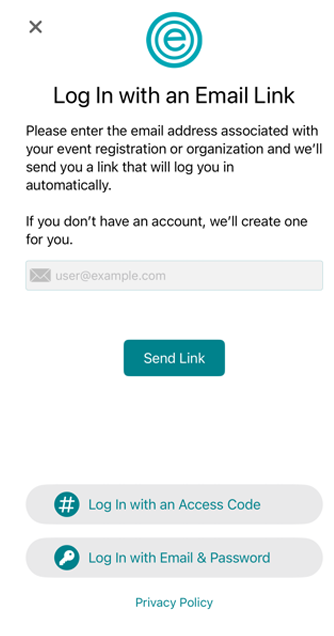
Click “Log in with an Email link” and provide the email address from your AAS account.
- Go to your email inbox and search for the email from [email protected], subject line “Log in to AAS 246 Meeting,” and click on “Get Started Now.” Note that this link is specific to you and can’t be shared with others.
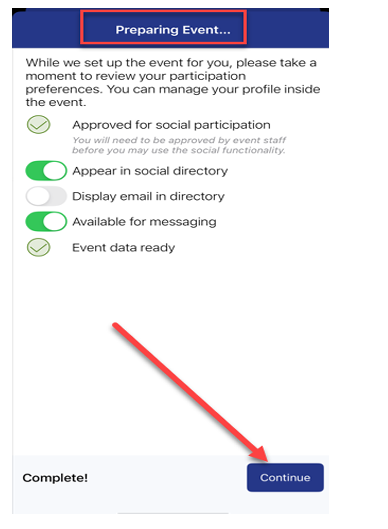
- Once logged in it will take few minutes to “prepare the event”. Once ready click “Continue”.
Creating your personal itinerary / planning your event
We suggest planning your day before you arrive at the venue. With the AAS meeting app, you can create your own personal schedule before you arrive, including choosing your sessions and exhibitors to visit. On the day, you'll be ready to go and know what's coming up next/where you need to be to maximize your day!
In the app, these menus are located on the bottom of the screen.
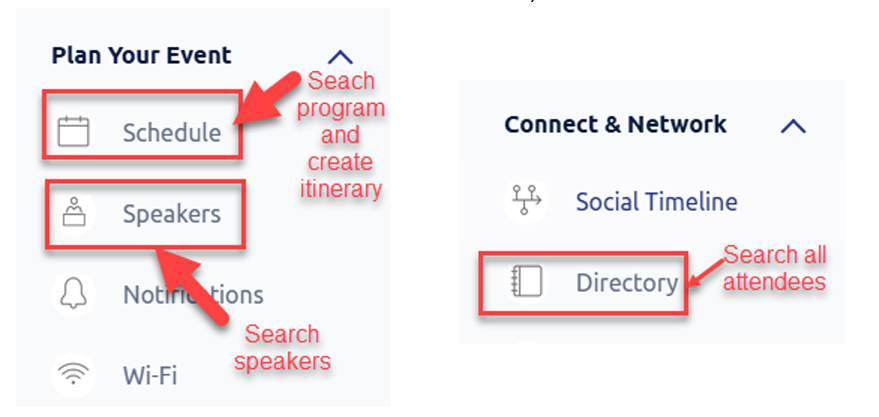
- In the desktop, In the left-hand menu, select “Schedule” at the bottom of the screen on a mobile device or under “Plan Your Event” on a desktop (see the screenshot above).
- Click “Log in with an Email link” and provide the email address from your AAS account.
- View session descriptions, speaker information, and other details by clicking/tapping the session names or using the search bar.
- To add a session to your schedule, open it and click the “Select Session” icon to the right on a desktop or tap the calendar icon on a mobile device.
- To review your personal schedule on a desktop, click “My Schedule” on the Schedule page. To do so on a mobile device, tap “Schedule”, go to “Filters” at the top right, tap “Selected”, and tap Apply. You can also view events in your schedule in the Dashboard on your mobile device.